CSS
CSS Works in Chrome but Not Safari or Firefox? A Real Example and Fix
A real-world example of a CSS container style query behaving differently across browsers, and how one small change made the result more predictable.

We've all been there.
You write some CSS, open your page in Chrome, and everything works exactly as expected.
Then you open Safari or Firefox.
Suddenly, something that should be simple behaves completely differently.
I recently came across an interesting Reddit discussion in r/css where a developer encountered exactly this problem.
The interesting part? It wasn't a complicated layout, JavaScript framework, or browser animation.
It was a small CSS example involving @property and container style queries.
I decided to reproduce the problem, compare its rendering across browsers using Preveo, and then test a possible fix.
Here's what happened.
1. The Original Problem: Same CSS, Different Results
The original Reddit post, titled "Possible CSS Bug", was published on August 12, 2026.
The developer created a minimal example using a registered CSS custom property.
The CSS looked like this:
@property --im-a-color {
    syntax: "<color>";
    inherits: false;
    initial-value: red;
}

.red {
    --im-a-color: red;
}

.blue {
    --im-a-color: blue;
}

@container style(--im-a-color) {
    h1 {
        color: green;
    }
}
And the HTML contained three headings:
<div>
    <h1>I should be black</h1>
</div>
<div class="red">
    <h1>I should also be black</h1>
</div>
<div class="blue">
    <h1>I should be green</h1>
</div>
The expected result was straightforward:
| Element | Expected color |
|---|---|
| First heading (default) | Black |
Second heading (.red) | Black |
Third heading (.blue) | Green |
The reason is the registered custom property's initial value.
Since --im-a-color starts at red, a boolean style query should evaluate to true only when its computed value differs from that initial value.
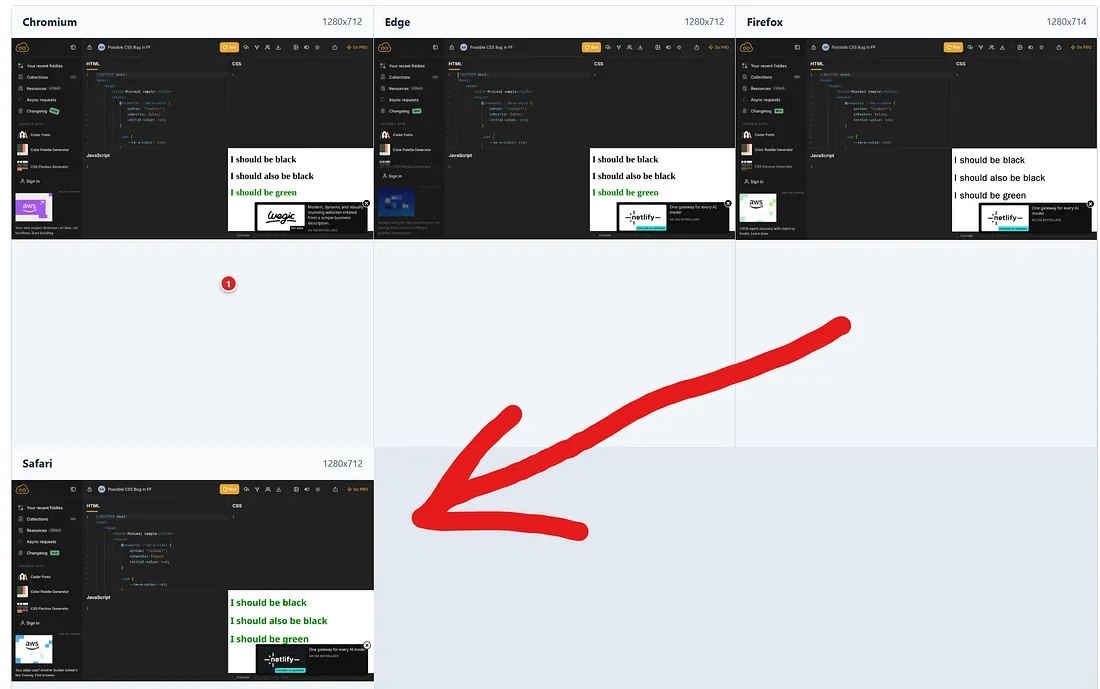
Chrome rendered the example as expected, but the original developer reported different behavior in Safari and Firefox.
This raised an interesting question:
Was the CSS wrong, or were browsers interpreting the same CSS differently?
2. Why This CSS Is Interesting
The key line is:
@container style(--im-a-color)
Unlike a traditional media query, a container style query can apply CSS based on a custom property's computed value on an ancestor.
When using the boolean form with a registered custom property, the condition is supposed to match when that value differs from its registered initial value.
In our case:
- Initial value:
red .redvalue:red.bluevalue:blue
Therefore, only the blue example should receive the green heading style.
This isn't simply about whether a browser supports container queries. It's about whether its implementation produces the expected result for this particular condition.
According to MDN's documentation on container style queries, registered custom properties have specific matching behavior based on their initial values.
That makes the original Reddit example particularly useful: it's small enough to isolate one browser behavior without introducing unrelated layout complexity.
3. I Ran the Example Through Cross-Browser Testing
Instead of trying to diagnose the problem by switching browsers manually, I used Preveo, a tool I've been building to evaluate websites and identify UI problems.
One of its capabilities is comparing how the same webpage renders in different browser engines:
- Chromium
- Safari (WebKit)
- Firefox (Gecko)
The idea is simple: load the same page in multiple browsers, capture the rendered results, and compare them visually.
For this test, I used the original JSFiddle and ran a cross-browser evaluation.
Before Fix — Preveo Report
View the original cross-browser evaluation
The important thing wasn't just identifying which browser looked different. It was having a reproducible example and a visual reference that could be checked again after making a code change.
This is especially useful with CSS because two browsers can accept the same declarations while producing different visual results.
And when that happens in a real application, the consequences can be much more noticeable than a heading having the wrong color.
Imagine the same kind of difference affecting a navigation bar, pricing card, product button, or an entire theme.
4. The Fix: Be Explicit About the Value
For this particular example, I changed the container query from a boolean condition to an explicit value comparison.
Before:
@container style(--im-a-color) {
    h1 {
        color: green;
    }
}
After:
@container style(--im-a-color: blue) {
    h1 {
        color: green;
    }
}
It's a small change, but an important one.
The original condition asks:
Is the computed value different from the property's initial value?
The updated condition asks:
Is the computed value blue?
That is a more precise statement of what this particular example needs.
I also added an explicit default heading color:
h1 {
    color: black;
}
This ensures the intended fallback appearance is clear rather than depending on inherited or browser-default text colors.
The updated example also includes basic HTML document metadata and a small JavaScript diagnostic that logs the computed custom property and heading color.
An important technical distinction
The explicit query is a practical workaround for this use case, not a universal replacement for boolean style queries.
For example, if the custom property were changed to green, the original boolean query should still match because green differs from red.
The explicit blue query would not match.
So this fix makes sense when the intended design is specifically tied to the blue value. It does not establish that the original CSS was invalid, nor does it resolve the underlying browser implementation discrepancy.
5. Running the Test Again
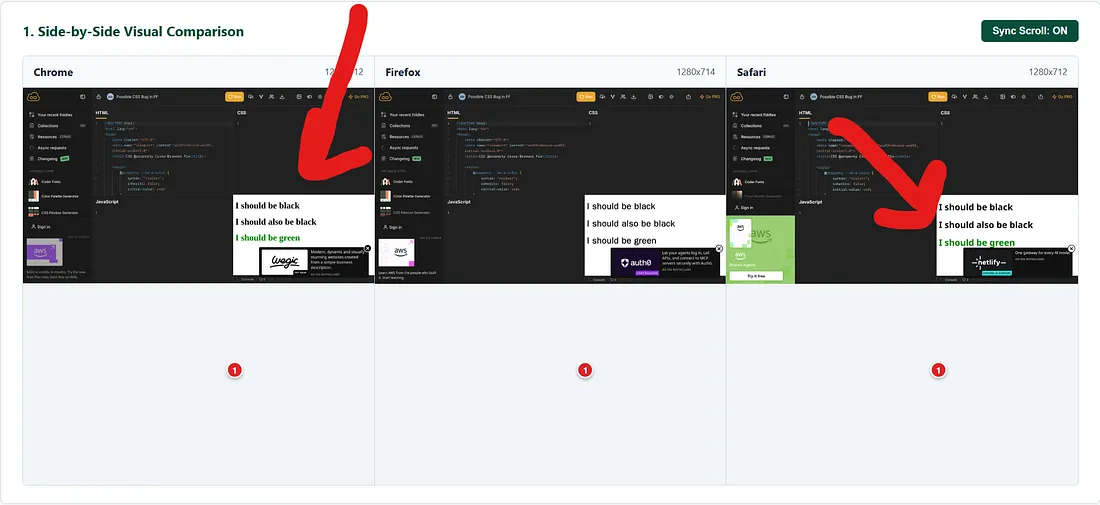
After modifying the CSS, I evaluated the updated example through the same cross-browser workflow.
After Fix — Preveo Report
View the updated cross-browser evaluation
Here are the two versions if you want to compare them yourself:
| Original | Updated | |
|---|---|---|
| CSS example | Before JSFiddle | After JSFiddle |
| Cross-browser evaluation | Before report | After report |
The useful part of this workflow is being able to evaluate both versions rather than relying on one successful Chrome test.
A proper regression check should verify that the updated result matches the intended appearance in every browser tested, not just that it looks better in one.
For a small example like this, that means confirming the heading colors.
For a production website, it could mean comparing entire pages, typography, component styles, and layout behavior.
6. What I Learned from This Example
There are three things I think developers should take away from this.
1. Browser support doesn't always mean identical behavior
Seeing a feature listed as supported doesn't guarantee that every browser version handles every edge case identically.
That doesn't automatically make one browser right and another wrong. The specification, implementation details, and exact browser versions all matter.
2. A small reproducible example is incredibly valuable
The original developer reduced the problem to three headings and a few CSS declarations.
That made it much easier to understand what was being tested.
If you encounter an unexpected rendering difference, isolating the smallest possible example is often more productive than debugging an entire application.
3. Test the fix across browsers, not just where the problem appeared
It's possible to fix something in Safari and accidentally change the appearance in Chrome.
That's why I prefer comparing the original and updated versions across multiple browser engines.
The goal isn't simply to remove one visual difference.
The goal is to make sure the intended experience works consistently for everyone.
7. Why I Think Cross-Browser Testing Still Matters
Modern frontend development has become dramatically faster.
We have AI coding assistants, component libraries, CSS frameworks, and tools that can generate entire interfaces from a prompt.
But there's a problem.
Generating the interface is not the same as validating the interface.
Your application might work perfectly in the browser you use for development while looking different for someone opening it in Safari or Firefox.
And often, you won't notice until a customer reports it.
This is one of the problems I'm trying to address with Preveo.
Instead of manually opening every page in multiple browsers and trying to spot differences, I wanted a way to evaluate browser rendering side by side, identify meaningful inconsistencies, and produce actionable suggestions for fixing them.
The example from Reddit is small, but it illustrates the larger issue perfectly.
Even a few lines of valid-looking CSS can deserve cross-browser testing.
Final Thoughts
What started as a Reddit post about a possible CSS bug became an interesting example of why cross-browser validation matters.
The practical fix for this case was small:
/* Before */
@container style(--im-a-color) { /* ... */ }

/* After */
@container style(--im-a-color: blue) { /* ... */ }
But the bigger lesson is that CSS working in one browser isn't proof that it works everywhere.
If you're building websites—whether manually, with React, using Lovable, or with an AI coding assistant—it's worth checking how the actual result looks across browsers before shipping.
You can explore the example yourself:
- Original Reddit discussion
- Original CSS example
- Updated CSS example
- Before: Cross-browser evaluation
- After: Cross-browser evaluation
And if you want to evaluate your own website across Chromium, Safari, and Firefox, you can try Preveo.io.
Have you ever had CSS work perfectly in Chrome but behave differently in Safari or Firefox? I'd be interested to hear which browser differences have caused you the most trouble.
 Install Browser Extension