Codex
How to Review a Localhost Website With Codex and Preveo MCP
Connect Codex to Preveo, make a local preview reachable for a cloud capture, and inspect a responsive review before deploying.

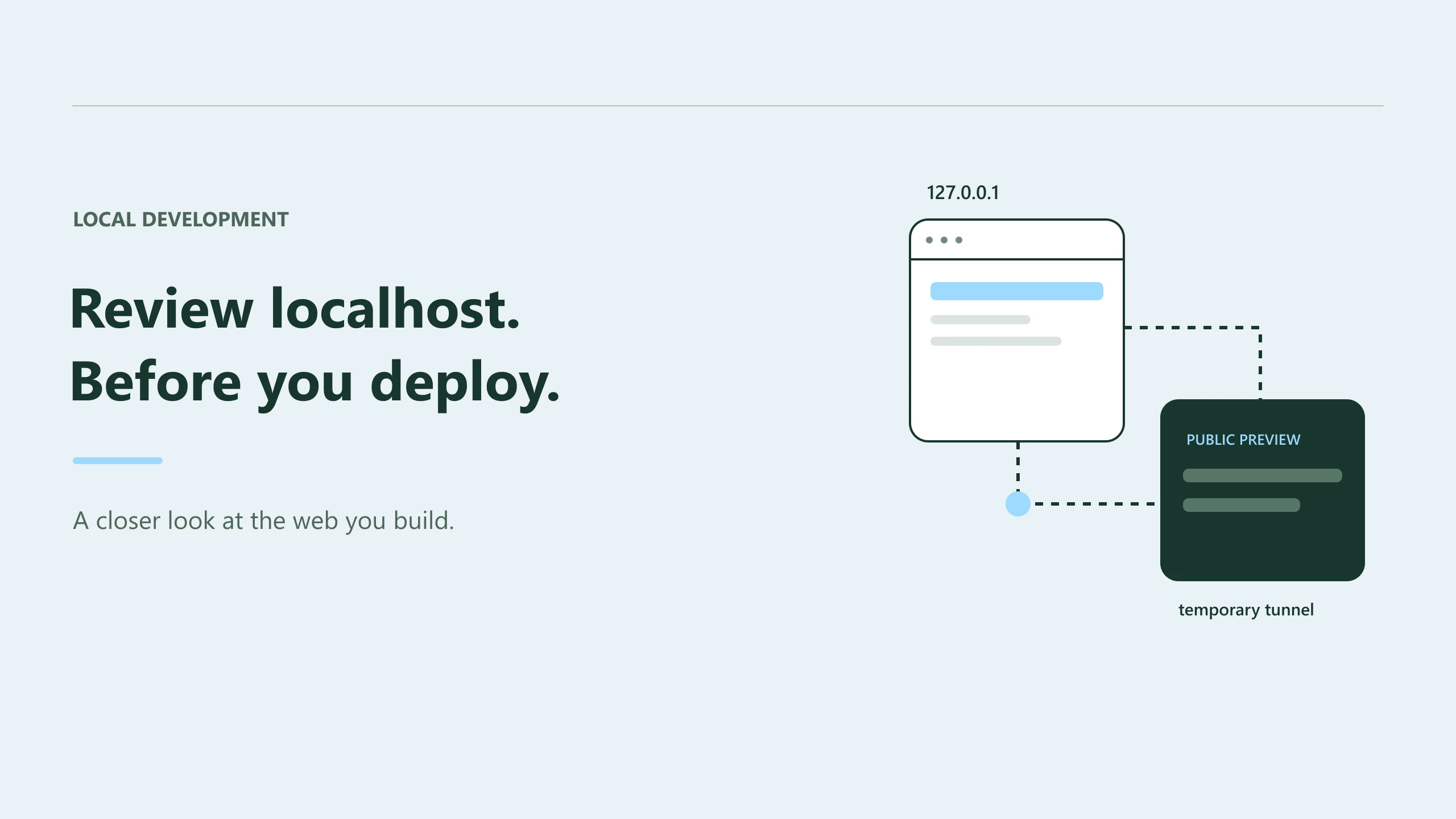
The best time to notice a broken mobile layout is while the component is still open in your editor.
You can do that with a local preview, Codex, and Preveo. Codex coordinates the review through MCP. Preveo runs the configured captures and keeps the evidence in a thread you can revisit.
There's one connection detail to understand before starting: a cloud worker cannot open the localhost address on your laptop. It needs a reachable URL. For a temporary review, a Cloudflare Quick Tunnel can provide one.
The steps below describe the workflow. The route names and port are examples; use the values from your own app.
Connect Codex to Preveo
With the Codex CLI installed, add the remote server and start sign-in:
codex mcp add preveo --url https://api.preveo.io/mcp
codex mcp login preveo
Follow the browser flow, sign in to the Preveo account you want to use, and review the connection request before approving it. Preveo issues separate MCP credentials for that connection.
You can check configured servers with:
codex mcp list
OpenAI documents the CLI and OAuth flow in its official MCP guide. Preveo's connection reference covers its endpoint and tools.
Once connected, ask Codex what Preveo Use Cases are available. This is a discovery request, so it can inspect the options before creating or running a review.
Get your preview working locally
Use your repository's normal development command. Check its instructions and scripts first, especially in a monorepo where the frontend may run from a subdirectory.
For a Next.js app whose dev script runs next dev, a loopback-bound preview could look like this:
npm run dev -- --hostname 127.0.0.1
Read the startup output to find the actual port, then open the route you want to review. A responding home page doesn't tell you whether /pricing or /checkout renders correctly.
Keep the preview bound to loopback. A tunnel can forward to that address without changing the app to listen on every network interface.
Give the cloud capture a reachable address
Before exposing a preview, check what that port serves. A temporary tunnel makes its routes publicly reachable, including any backend routes the development server proxies. Use suitable test data and keep sensitive debug or admin screens out of that exposure.
If that's appropriate for your app, authorize the agent to start a temporary tunnel, or start one yourself with cloudflared installed:
cloudflared tunnel --url http://127.0.0.1:3000
Replace 3000 with your actual port. Keep the process running and use the generated HTTPS address as the base URL for the review. Append the affected route, such as /pricing.
Cloudflare's Quick Tunnel documentation explains installation and current limitations. This kind of tunnel is intended for development and testing.
Ask for a review with a clear scope
Here's an example request after the preview is ready:
Use Preveo to check this project's pricing page for responsiveness. Use the temporary tunnel URL for
/pricing, choose supported desktop and mobile devices, and inspect the saved screenshots for overflow and unreadable text. Run captures without a macro. Put the review under this project's User Interface folder and return the thread link.
If you'd like Codex to manage the tunnel too, include explicit authorization to expose that preview temporarily and ask it to stop the tunnel afterward.
Behind the scenes, the agent should resolve the project, read its applicable saved instructions, and use a suitable area folder. It discovers the selected Use Case's configuration, creates a thread and layers, then submits a job.
Discovering tools and saving configuration are separate from execution. Running captures uses the normal job and wallet rules, so make sure your account has the permissions and balance required for the work.
Check that the result contains evidence
After submitting the job, the agent polls its status and retrieves the saved views. Ask it to inspect the actual screenshots with an available image or browser tool and connect each finding to the relevant capture. MCP returns media URLs; visual inspection depends on the tools available in the client.
A useful response includes the thread link, the conditions checked, specific observations, and anything the agent couldn't inspect.
If you request a macro as well, choose a named, compatible one. The resulting saved report is an additional source of findings. Capture-only work won't produce a macro report.
Fix one issue and look again
Choose a finding, inspect the relevant code, and make the smallest useful correction. Then capture the affected conditions again.
Preserve the original evidence separately if you need a lasting before-and-after comparison. Rerunning cloud layers can replace their existing captures.
When you're finished, stop the tunnel process you started, normally with Ctrl+C in its terminal. A temporary review should have a temporary public URL.
Now the code review has something concrete to refer to: the page before the fix, the change itself, and a fresh view of what happened afterward.
 Install Browser Extension